Tutorials
How to use AnkoKids, step by step.
Four short guides with screenshots from the Android app, version 1.2.4.
1. Draw a lesson and colour it in
Every drawing is a short list of strokes. The app shows one at a time and says what to draw.
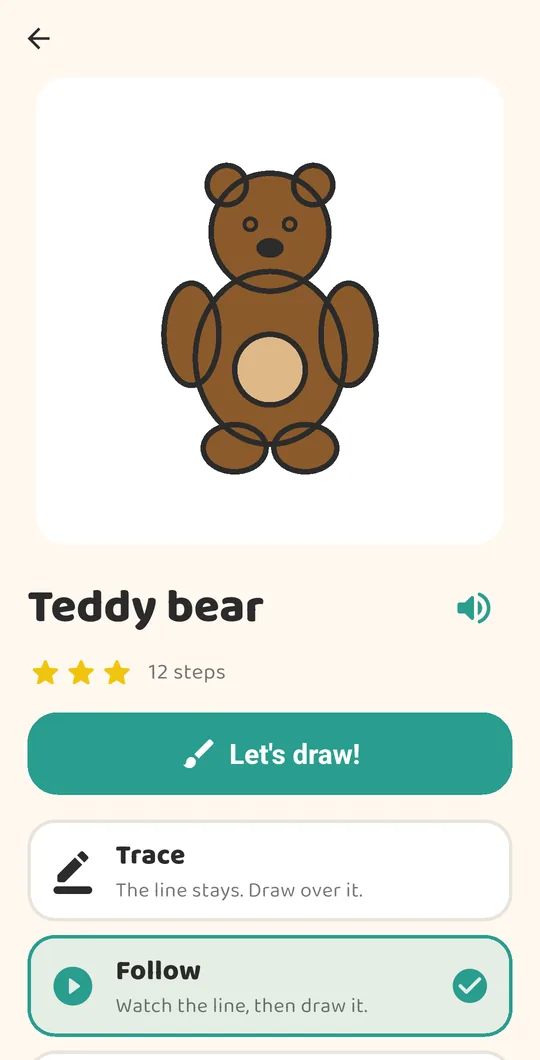
- Open the Lessons tab, tap a category, then tap a drawing. The intro shows the finished picture and the number of steps. The speaker button says its name aloud.
- Pick a mode. Trace: the guide line stays and you draw over it. Follow: the line appears, fades, and you draw it yourself. Memory: no line, only the spoken hint. Memory opens once the picture is finished in Follow.
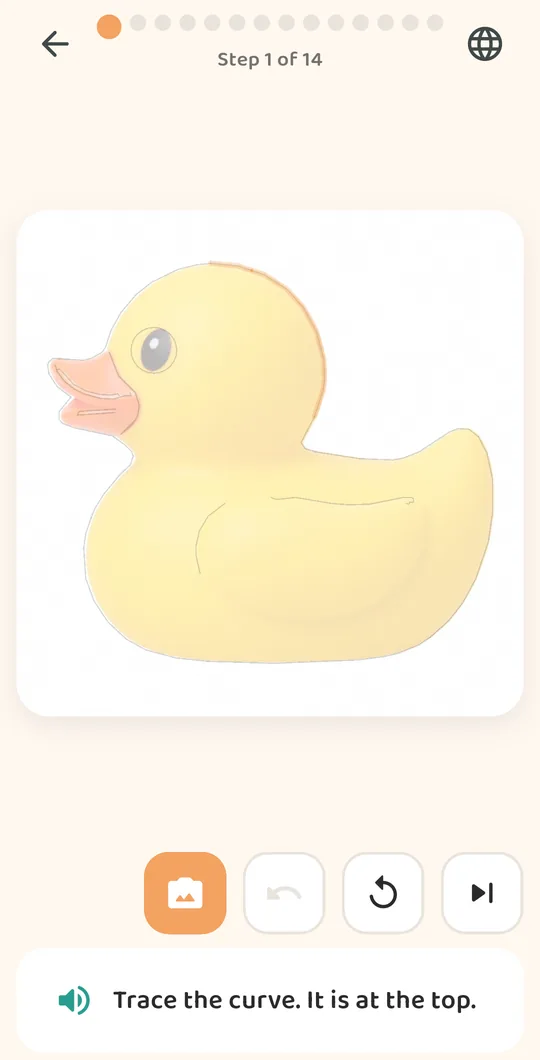
- Tap Let’s draw! The current stroke glows orange with a dot where to start. Draw it with a finger. A close enough line snaps into place with a sparkle; after three tries the app places it for you. The buttons under the card undo, replay or skip a stroke.
- Colour it in. After the last stroke the page becomes a colouring sheet. Pick a colour from the strip, then tap inside an area to fill it, or switch to Crayon to scribble. Tap Done when finished.
- Celebrate. Up to three stars and a sticker. The drawing is saved to the gallery automatically. Choose Draw again, Next lesson, Share (behind the parent gate) or Home.
Finish every drawing in a category and the next closed category opens by itself. A grown-up can also open a locked category by watching one short video advert.
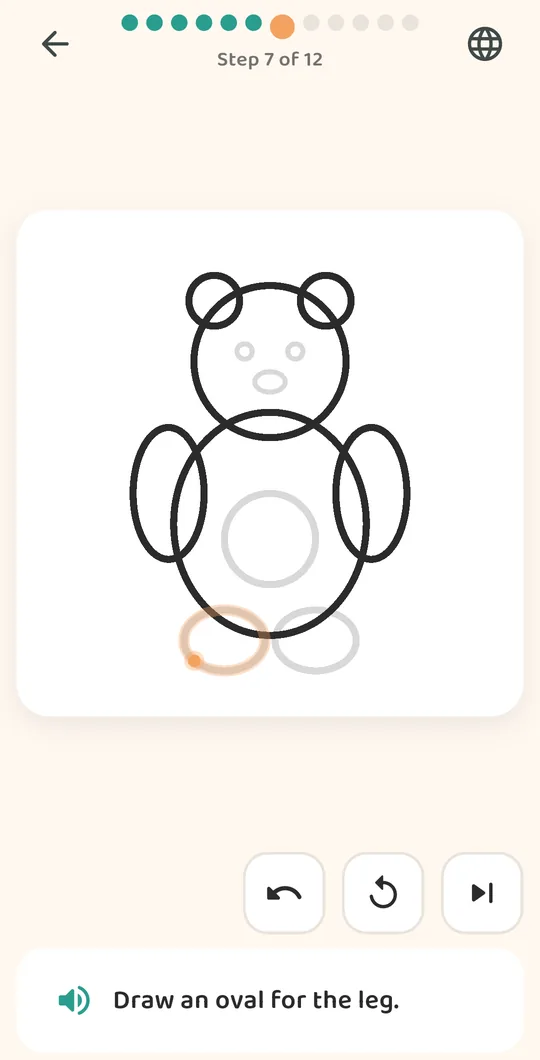
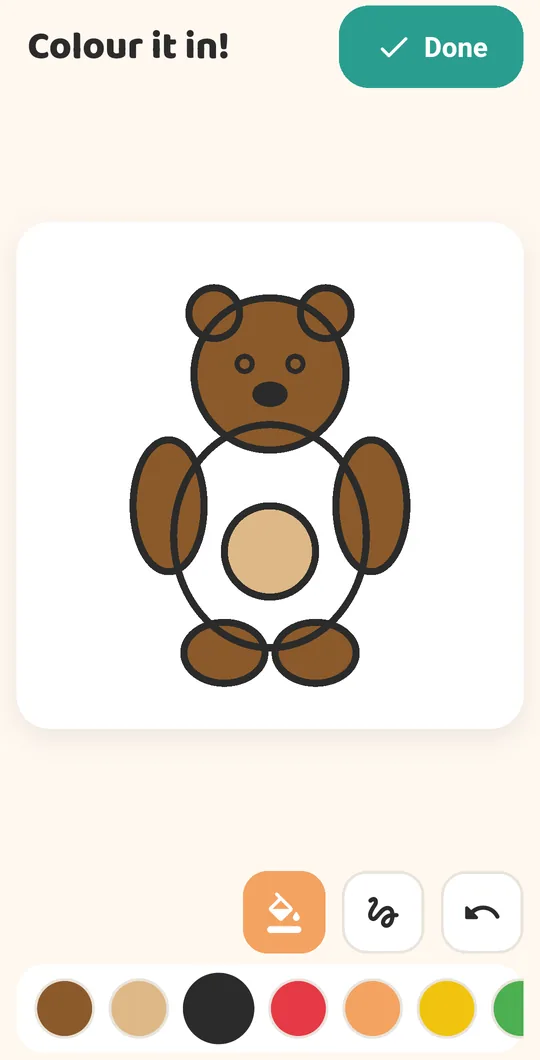
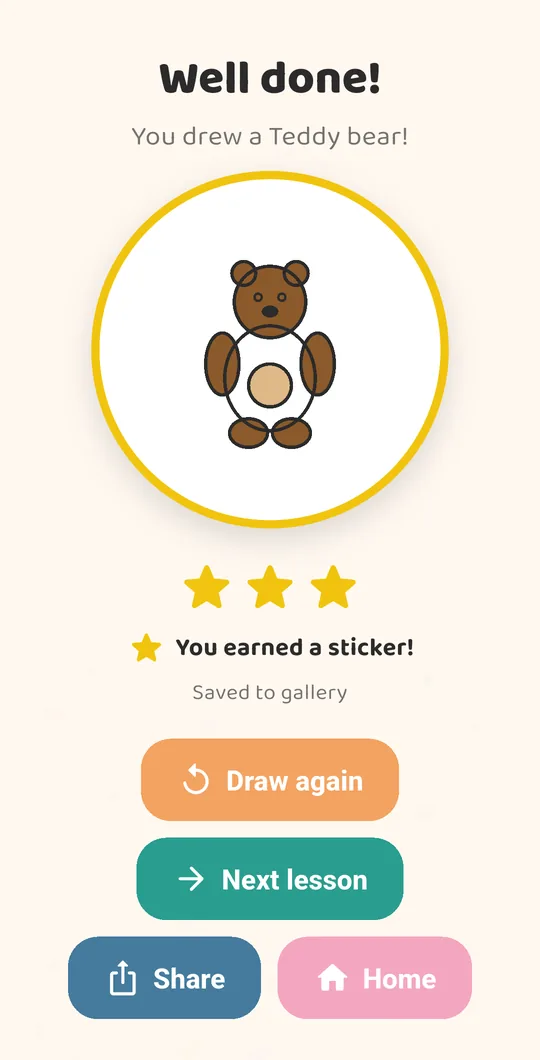
2. Free draw
The Draw tab is a blank page with no steps and no rules.
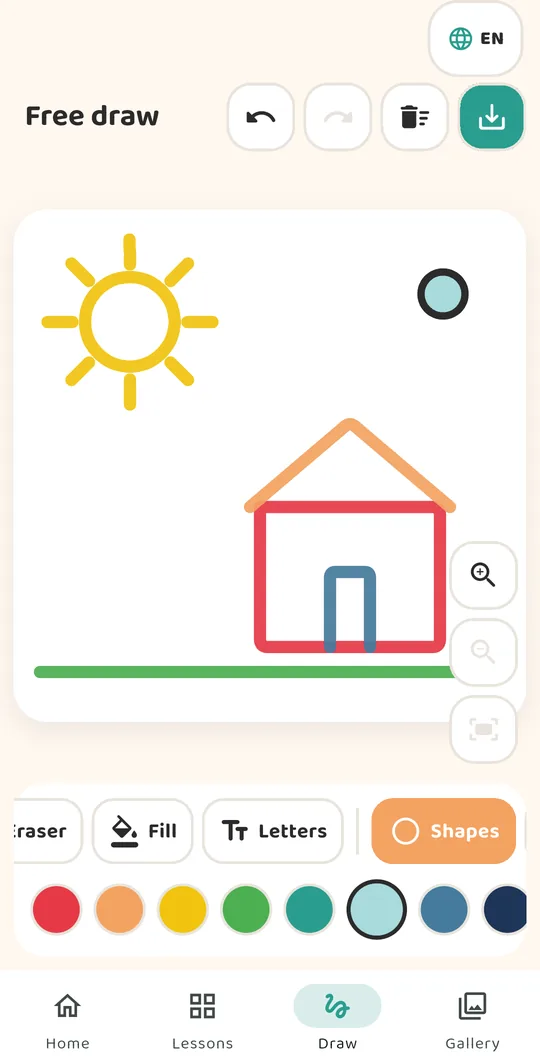
- Pick a tool from the strip at the bottom. Crayon draws, Eraser rubs out, Fill pours colour into a closed shape. Pick a colour from the chips underneath.
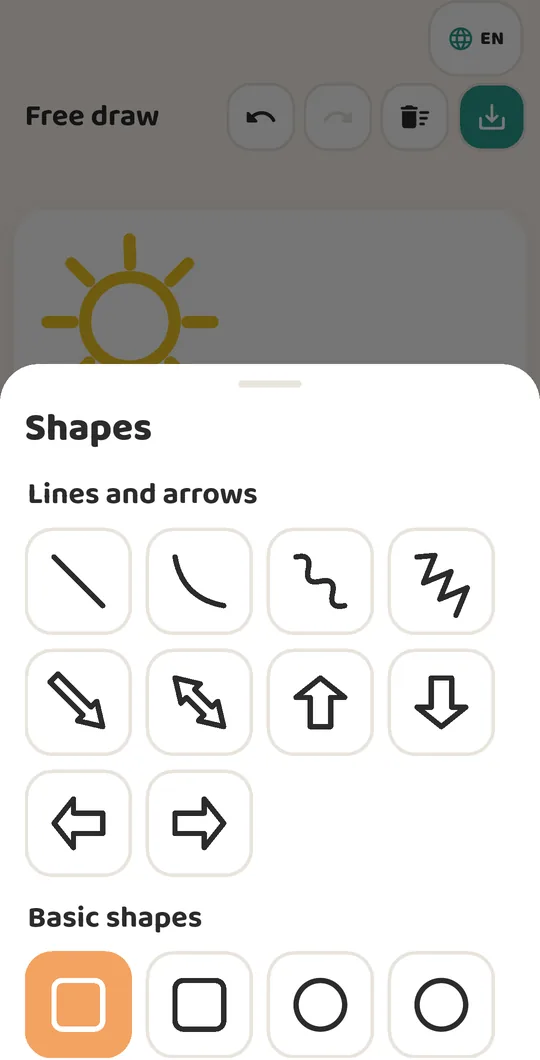
- Letters and Shapes sit further along the strip. Letters stamps letters in four scripts. Shapes opens a sheet of lines, arrows and basic shapes: pick one, then drag on the page to place and size it.
- Zoom with the magnifier buttons or by pinching. Fit to screen brings the whole page back.
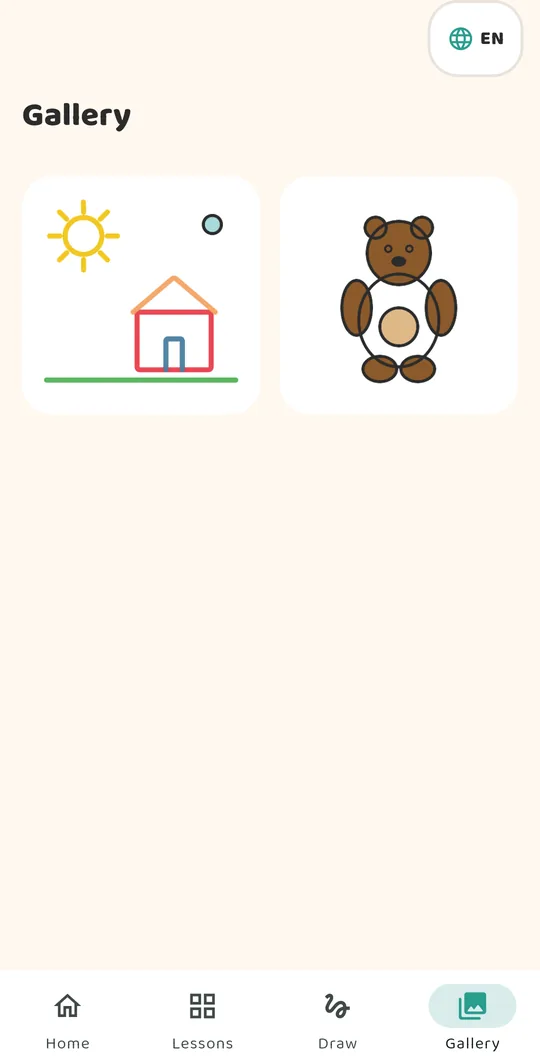
- Undo, redo, clear and save live at the top. Save puts the page in the Gallery tab. The page also restores itself after a restart, so nothing is lost if the app closes.
3. Turn a photo into a drawing lesson
A toy, a pet, a person or a building becomes a lesson of its own. Everything happens on the phone; the photo is never uploaded.
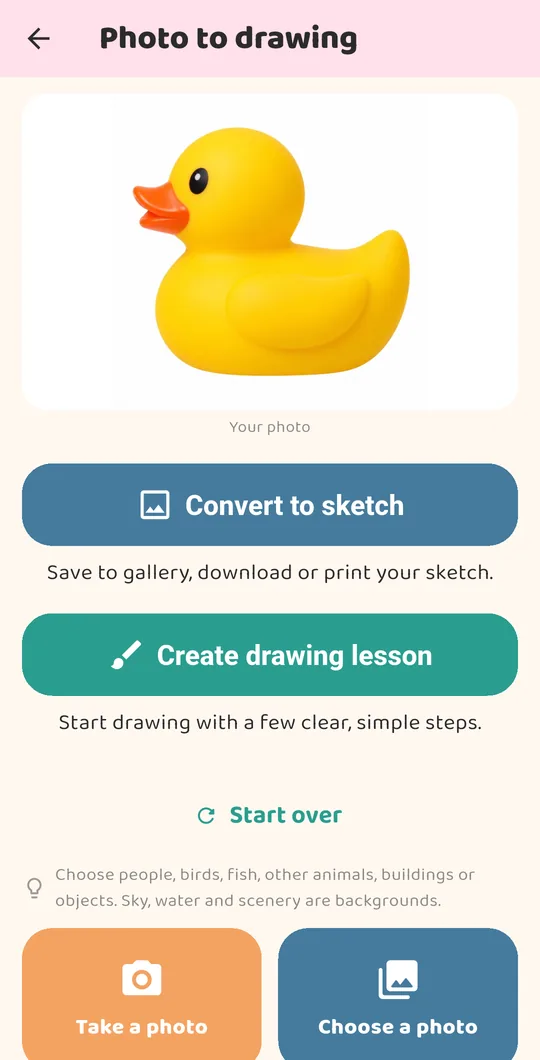
- Tap Photo to drawing on the Home tab, then Take a photo or Choose a photo. One clear subject on a plain background works best. Sky, water and scenery are treated as background and left out.
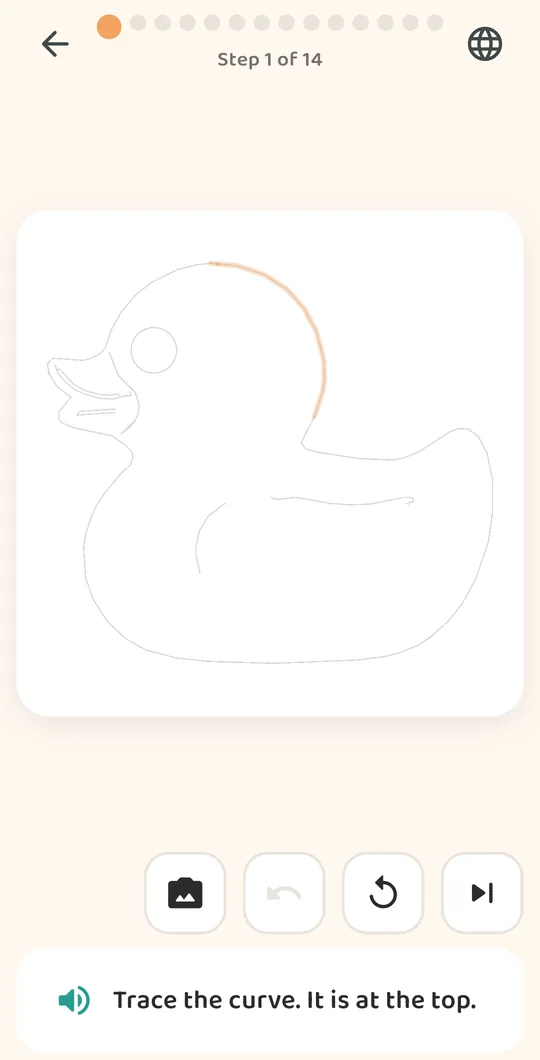
- Tap Create drawing lesson. The app traces the outline into a handful of steps and opens it straight away, like any other lesson. Convert to sketch instead makes a pencil sketch you can save, download or print.
- Draw it. The photo button under the card shows the original picture behind the lines, so you can see what each stroke is. The finished lesson is kept under My photos in the Lessons tab, with colours taken from the picture.
Blurry or busy photos give messy lines. If the result is poor, tap Start over and try a closer, brighter shot.
4. The parent area
Settings, sharing and adverts sit behind a gate that a small child cannot pass by accident.
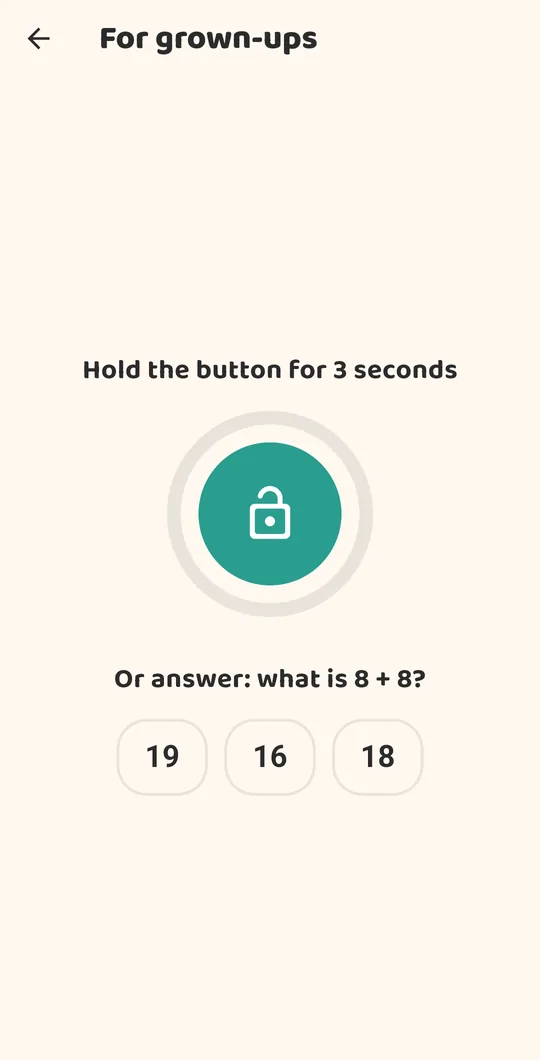
- Tap the padlock at the top right of Home, then hold the big button for three seconds or answer the sum underneath.
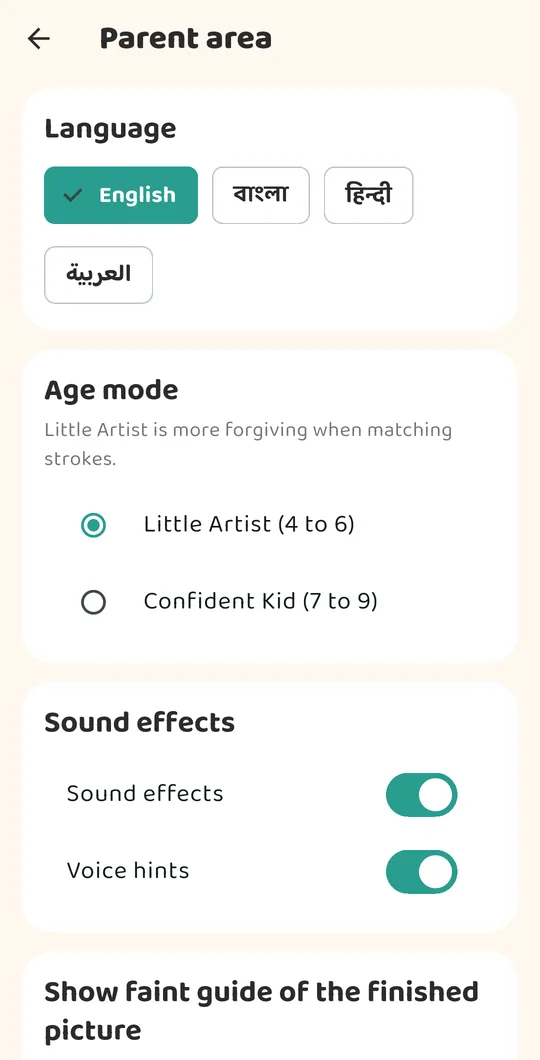
- Language and age mode are at the top, then sound effects, voice hints, guide line strength, a left-handed layout and a break reminder at 10, 20 or 30 minutes.
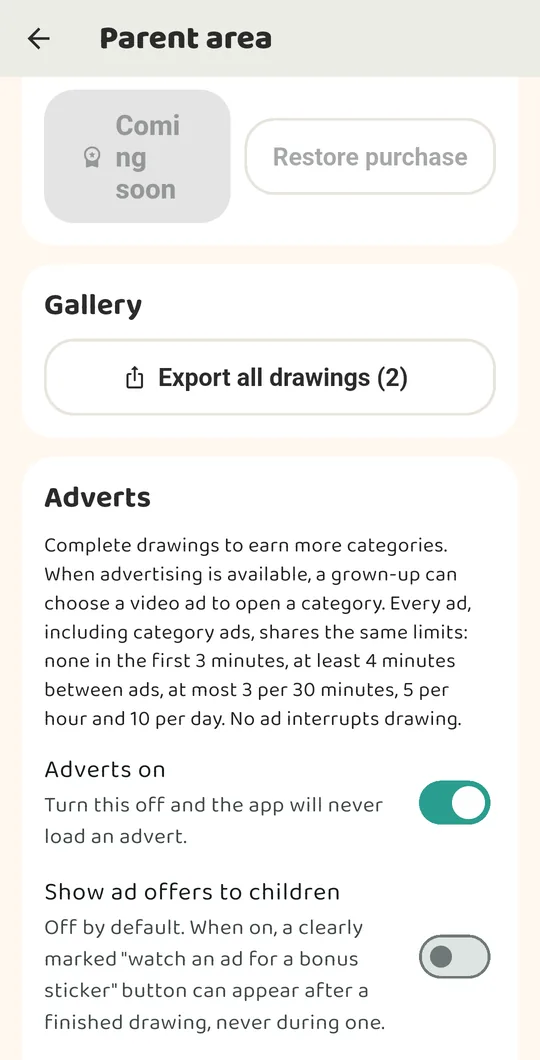
- Adverts has the master switch. Turn it off and the app never loads an advert. A second switch, off by default, decides whether a child ever sees an optional “watch an ad for a bonus sticker” button after a finished drawing.
- Further down: export all drawings, progress per category, reset, and the About panel with the version number and the privacy policy.